Annotate visually target exact elements save tokens and credits ship UI fixes faster
Contexa turns UI annotations into structured, code-aware context your agent can actually use. You point to the exact element and send the exact classes, selectors, and context needed.
Instead of uploading screenshots, wasting credits on image interpretation, or forcing AI to search the whole codebase for one small change, your agent can fix it fast.
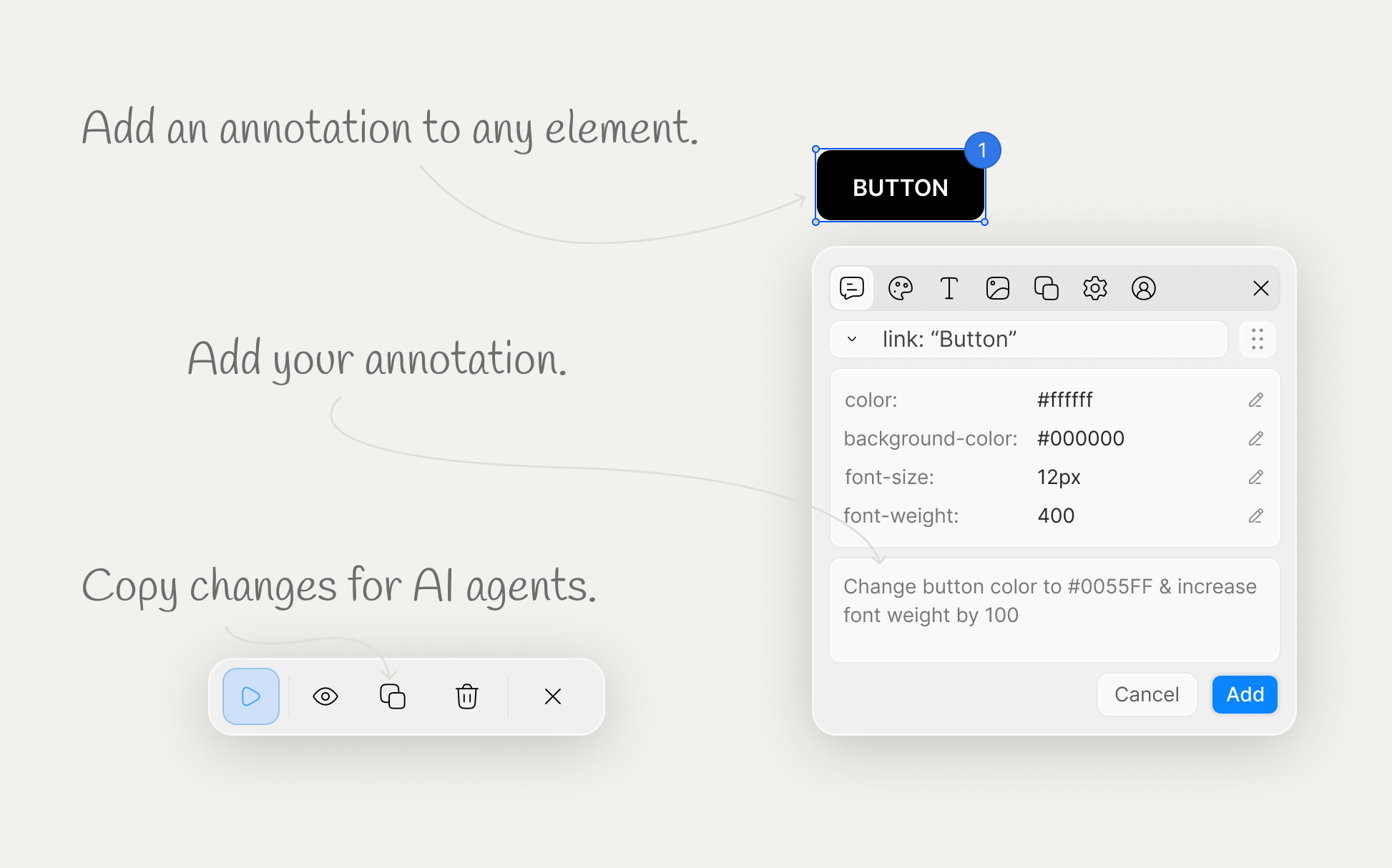
Stop guessing.
Start pointing.
Contexa gives AI the exact UI context it needs to act fast. No vague screenshots, no long explanations, and no wasted tokens trying to locate one small change in a large codebase.
Exact targeting
Click the element you want to change.
Faster fixes
Send the right classes, selectors & edits instantly.
Lower AI spend
Avoid wasting credits on screenshot interpretation.
Less searching
No need to inspect the entire codebase for one fix
Inspect elements.
Make changes.
Send exact context to AI.
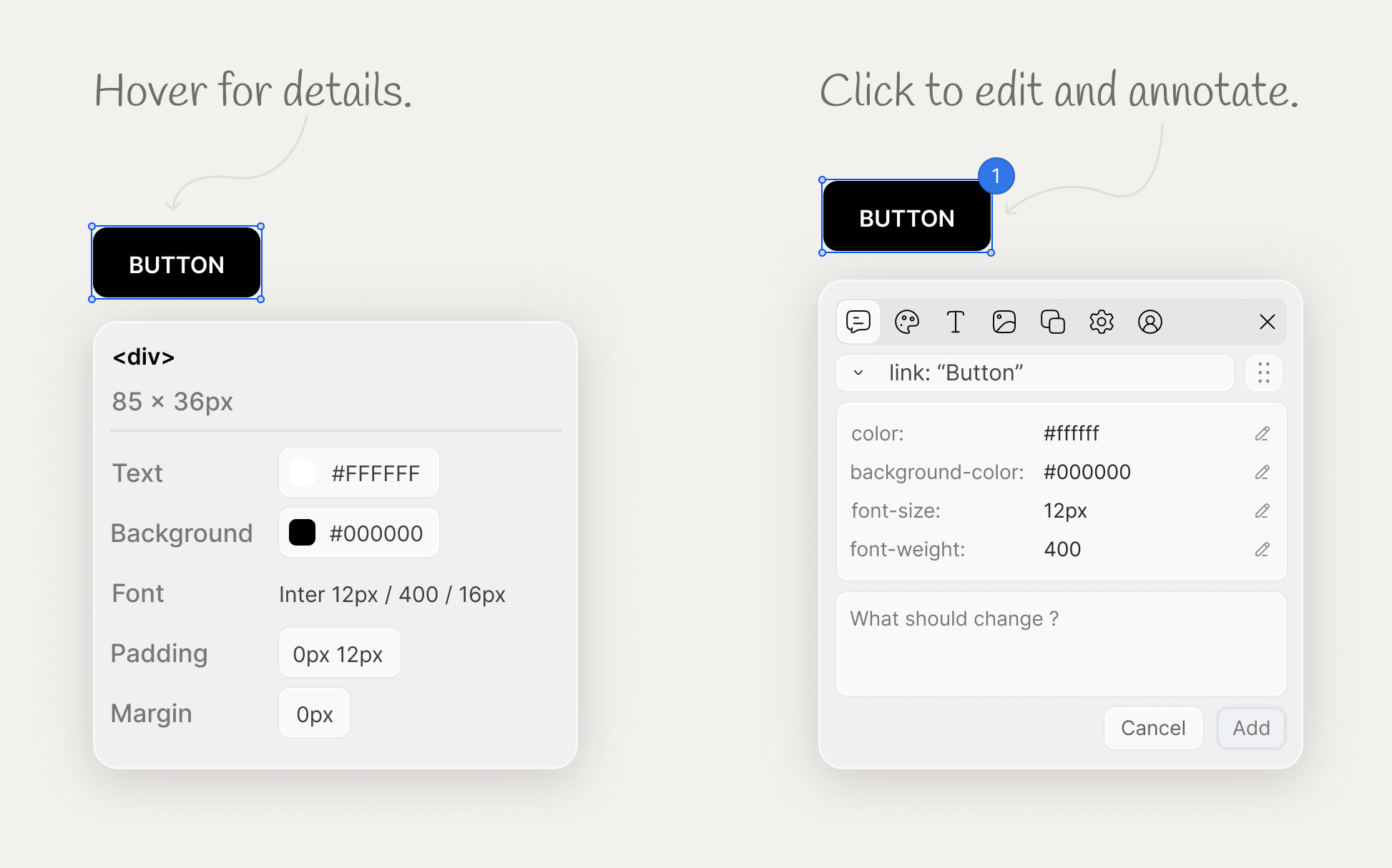
Hover any element to instantly see the essentials like fonts, colors, spacing, padding, and margins. Click to edit styles directly or annotate what should change, then copy everything into structured context so your AI agent gets both the target and the changes you made.
Typography details
See font family, size, weight, line height, and other text styles at a glance.
Color inspection
Inspect text, background, border, and other color values without digging through DevTools.
Spacing details
Quickly check padding, margins, gaps, and layout spacing on any element.
Annotation mode
Add notes for the exact change you want when you do not need to edit it yourself.
Click to edit
Select an element and make style changes directly before sending the final context to AI.
Change-aware copy
When you copy, Contexa includes the edits and annotations you made in the exported context.
Precise targeting
Send the exact classes, selectors, and surrounding context for the specific element you chose.
Any website
Use it on production sites, staging, or localhost from the same workflow.
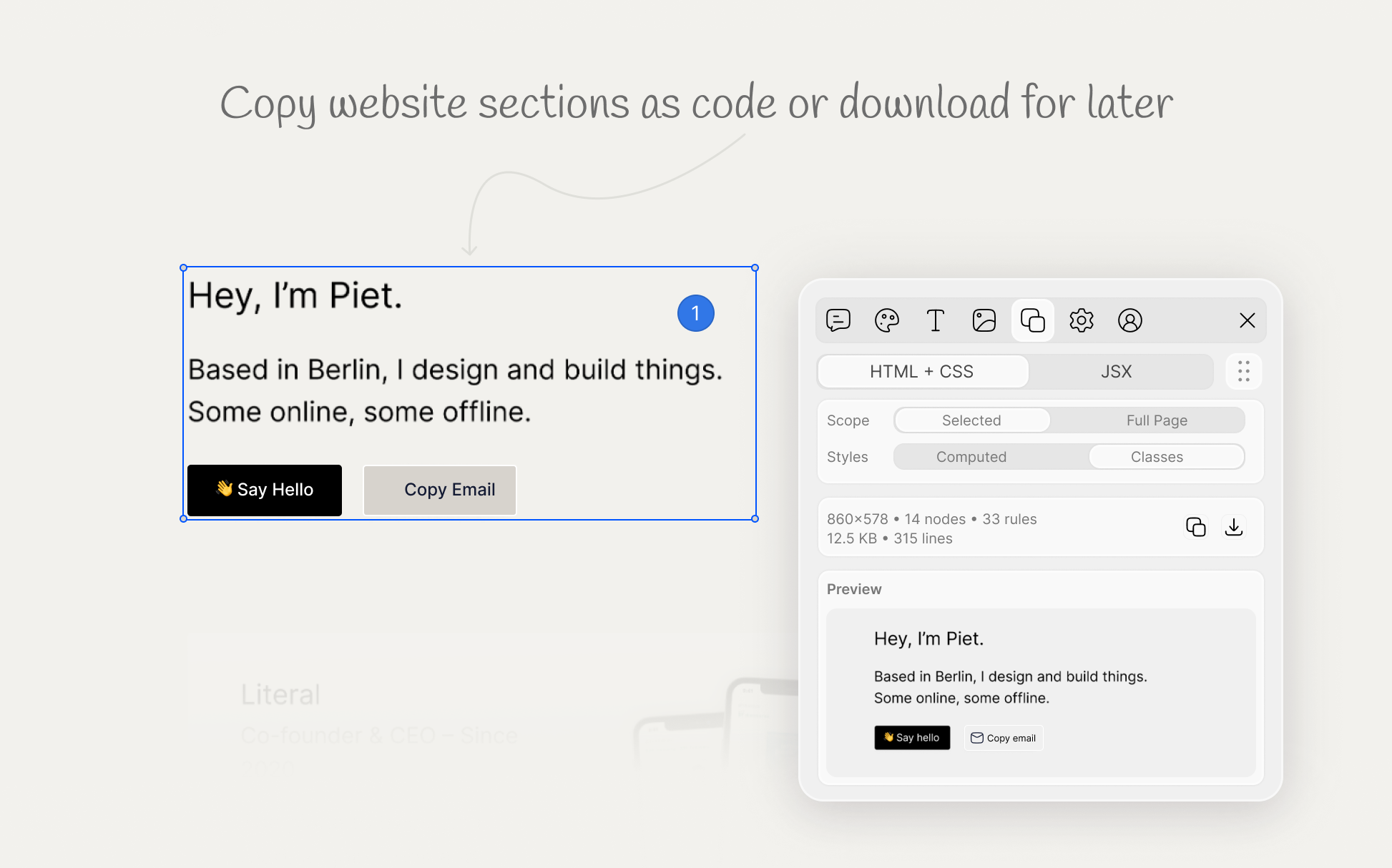
Extract real components
from any interface.
From buttons and cards to full UI sections, Contexa lets you copy components directly from live websites and local apps. Export them as HTML, CSS, or JSX, or download them to keep moving without recreating the same UI by hand.
HTML export
Copy clean markup for the component you selected.
CSS extraction
Capture the styles that make the component look right.
JSX ready
Move faster in React with exportable JSX output.
Download anytime
Save components for reuse, reference, or editing.
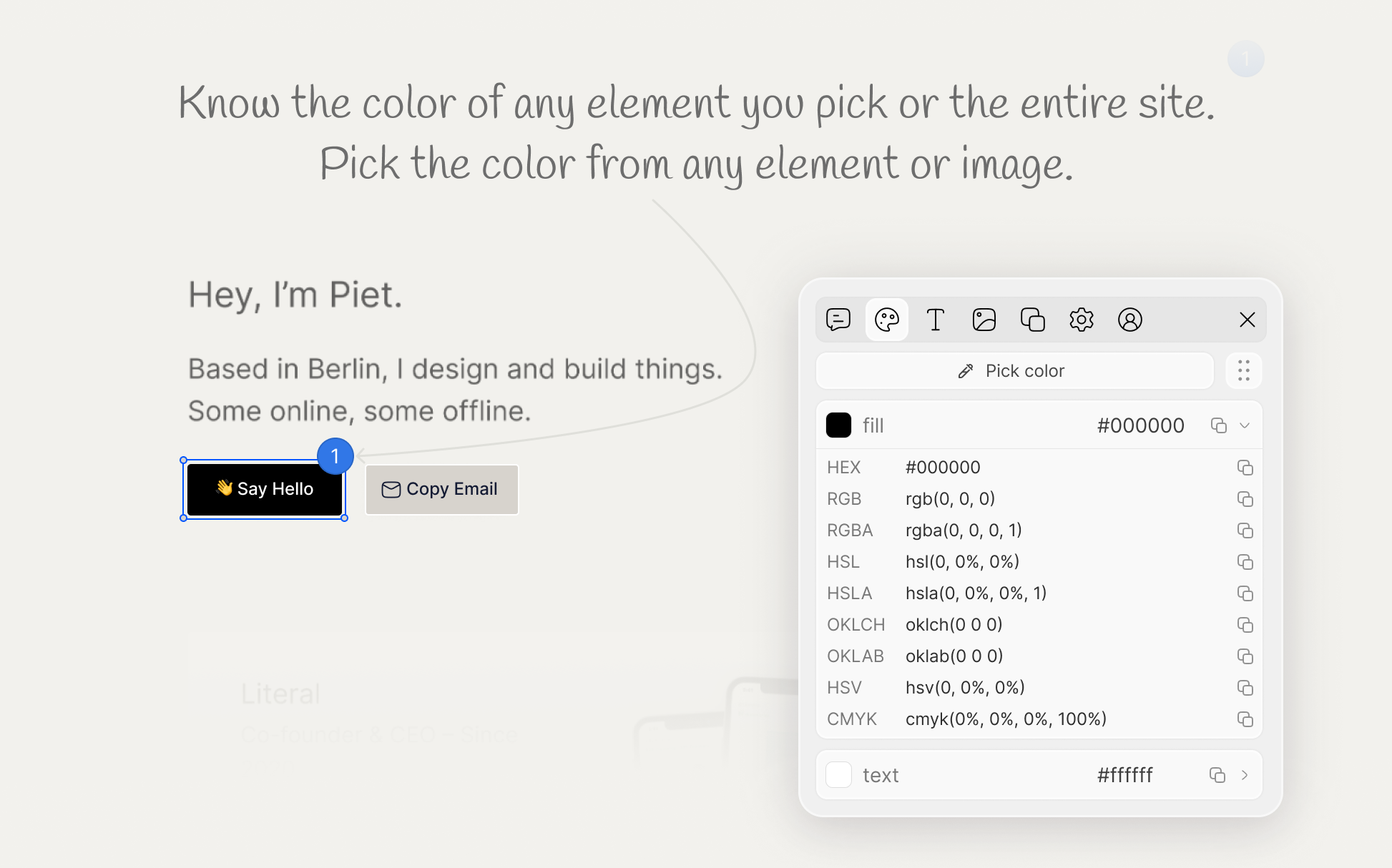
Pick colors from any site
without opening DevTools.
Hover and click anywhere to capture the exact colors used on a page, from UI elements to images and backgrounds. Copy the value you need, inspect the full palette, and send the right color context to AI without digging through code by hand.
Color eyedropper
Pick colors directly from elements, images, and live interfaces with a simple hover-and-click workflow.
Multiple color formats
Copy colors in the format you need, including hex and other standard web color values.
Full palette view
See the colors a site is using so you can understand the overall visual system, not just one isolated value.
AI-ready color context
Send the exact color values you picked along with the element context, so your agent can make the right visual changes faster.
Pick colors from any site
without opening DevTools.
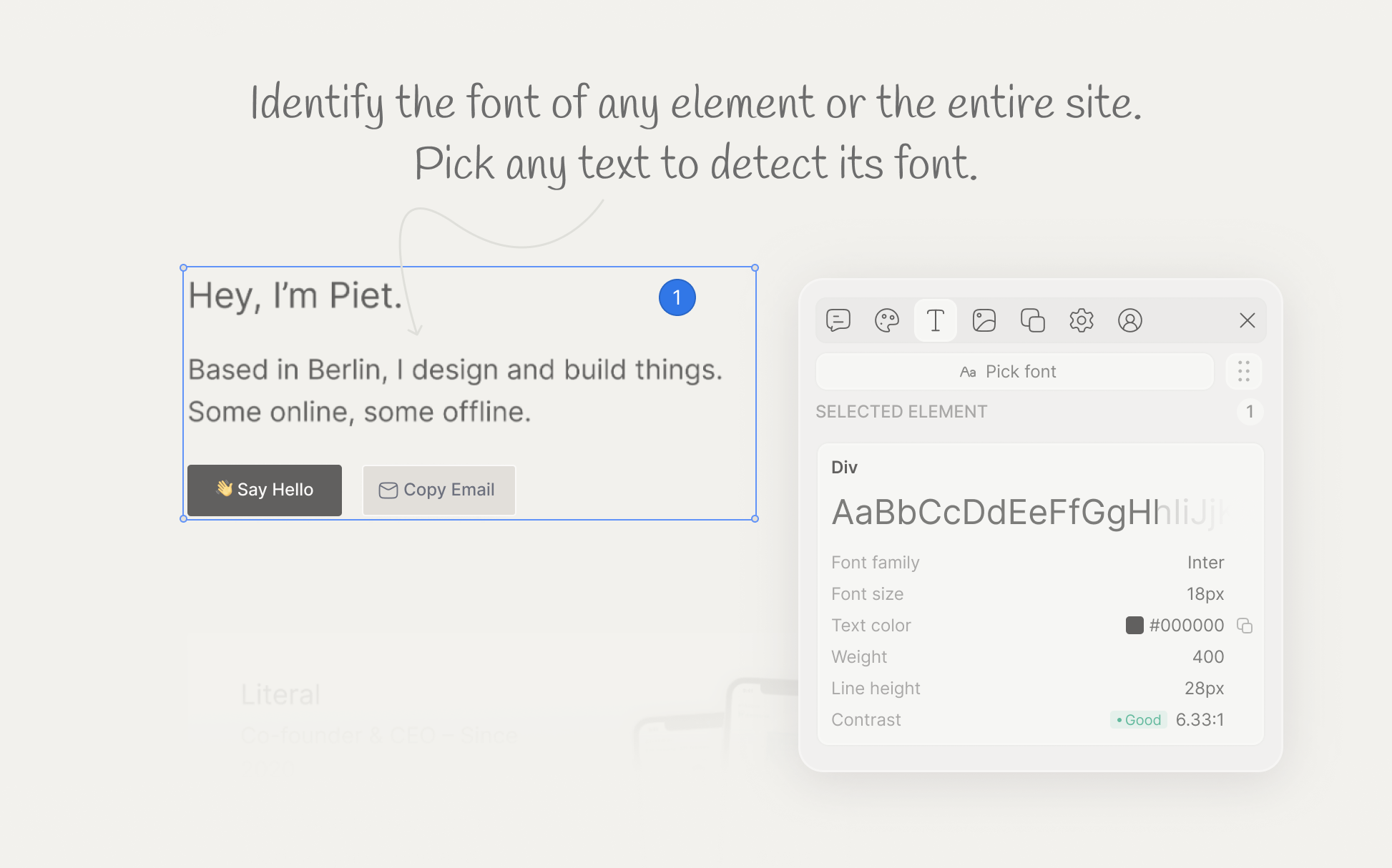
Hover over any text layer to inspect the font family, size, weight, line height, spacing, and other typography details in seconds. Contexa helps you identify what a site is using, understand how it is styled, and send the right font context to AI without hunting through CSS by hand.
Font identification
See the exact font family being used on headings, body text, buttons, and labels.
Full typography details
Inspect size, weight, line height, letter spacing, and other text properties at a glance.
Text style context
Understand how typography is applied to a specific element instead of guessing from appearance alone.
AI-ready font context
Copy the font details together with the element context so your agent can make the right typographic changes faster.
Grab SVGs, PNGs, and JPGs
from any site.
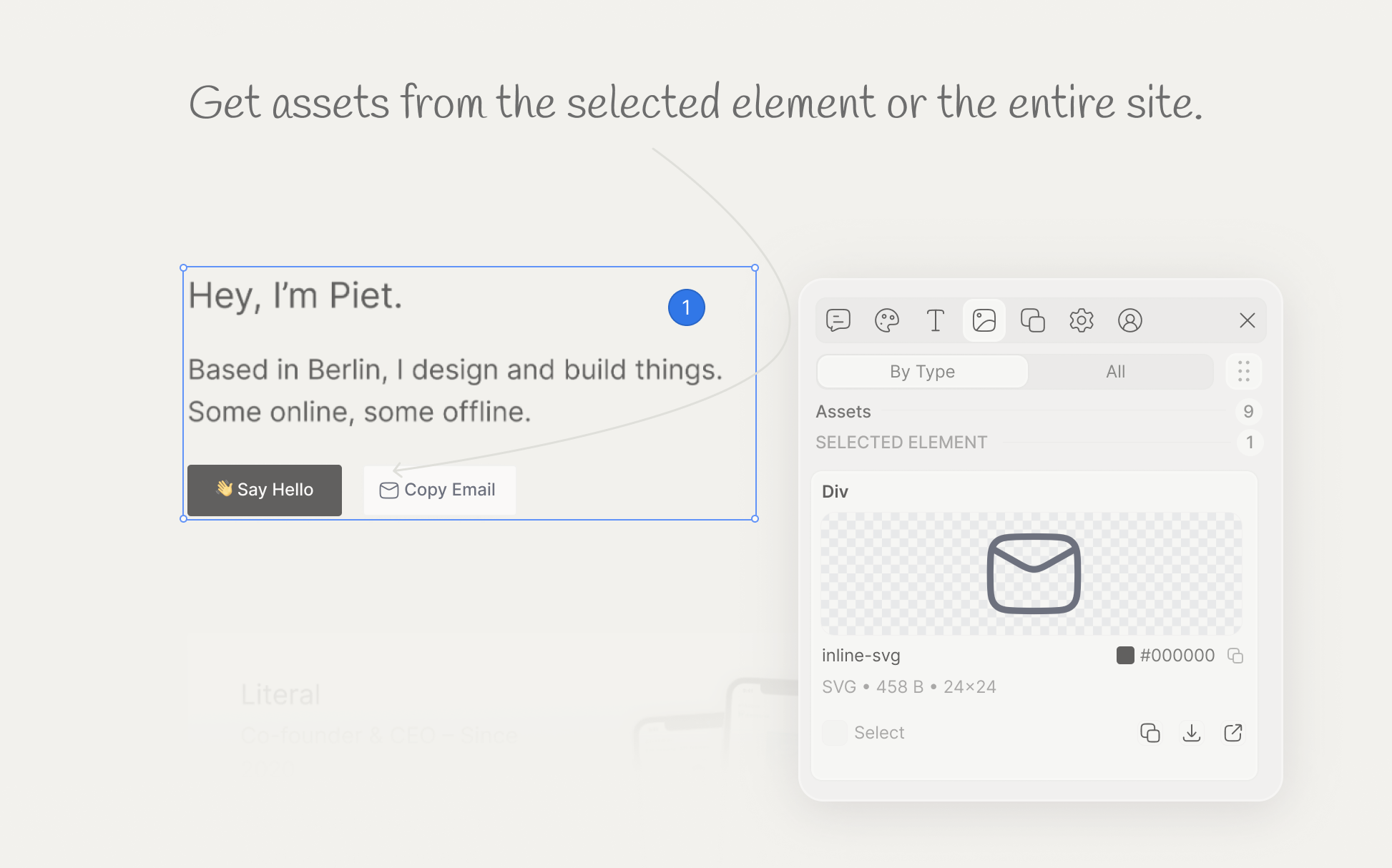
Contexa helps you find and download visual assets directly from the page, without digging through source files or network tabs. Extract logos, icons, images, and other UI assets one at a time or all at once, then move faster with the exact files you need.
Asset detection
Quickly surface the images and visual assets being used across any page.
One-click downloads
Download individual SVGs, PNGs, and JPGs as soon as you find what you need.
Bulk export
Grab multiple assets in one go when you want the full set from a screen or section.
Faster design handoff
Collect the exact assets you need for edits, inspiration, or AI-assisted changes without slowing down your workflow.
Collect feedback
wherever your clients are.
Ask clients to install Contexa, open the page you want reviewed, and point at the exact element they want changed. They can annotate the UI directly, copy the feedback, and send you precise change requests you can handle yourself or pass straight to AI.
Client-side feedback
AI-ready handoff
Keep design, product, and dev
on the same page.
Contexa helps designers, developers, and PMs work from the same visual context. Point at the exact element, capture what needs to change, and hand it off without repeating yourself across tools or teammates.
Shared visual context
Everyone sees the same element, notes, and intent from the start.
Cleaner handoffs
Turn vague requests into implementation-ready feedback.
Less back-and-forth
Reduce clarification loops between design, product, and engineering.
Faster execution
Move from review to edit faster with structured context.
Less explaining. Less guessing. Faster shipping.
Up and running
in 30 seconds
Install the extension
Add Contexa to Chrome and pin it to your toolbar. No setup calls, no config maze, and no code changes to get started.
Open any site
Open any site and click the bubble. Then hover to inspect elements and select what you want to change.
Copy and ship faster
Annotate changes or edit styles directly, then copy structured context with the exact classes, selectors, and updates for your AI agent.
Less guessing.
Less frustration.
Faster fixes.
Stop burning time on vague prompts, repeated explanations, and AI retries that miss the point. Contexa gives you the exact UI context you need to save time, waste fewer credits, and make the right change faster.
This is free forever. The moment you install, you own it.
Frequently asked questions
Everything you need to know about Contexa and how it helps you inspect, review, and build interfaces faster.
Contexa is a Chrome extension that lets you inspect any website visually, point at exact UI elements, and turn those selections into structured, code-aware context. It helps you see fonts, colors, spacing, assets, and components, then copy everything you need to make or automate UI changes faster.
Yes. Contexa has a free plan that gives you 3 picks every day including color picker, font detect, assets download, and component copy. If you need unlimited picks, you can upgrade to the yearly or lifetime plan.
Install the extension from the Chrome Web Store, pin it to your toolbar, and open any website. Click the bubble in the bottom-left corner to launch Contexa. That is all you need to start inspecting.
Yes. Contexa works on most pages you open in Chrome, including live production sites, staging URLs, and localhost during development.
No. Contexa is a point-and-click workflow. You hover to inspect, click to select, and copy to export. No code, no config, no DevTools required for most tasks.
When you copy from Contexa, you get the exact element context including classes, selectors, styles, and any edits or annotations you made. This makes it usable directly in AI prompts, design handoffs, or your own implementation notes.
Instead of sending screenshots and asking AI to interpret the image and find the relevant code, you send exact element context. Smaller, more precise prompts mean fewer retries, less image interpretation overhead, and less time spent searching the whole codebase for one small change.
Yes. The copied output is plain, structured context that works with any AI coding tool or agent. You paste it into your prompt and your agent has exactly what it needs.
Yes. Clients need to install the extension first, then they can open the page you want reviewed, point at the exact element they want changed, add their notes, and send you the copied feedback. You can then make the change yourself or pass it to AI.
You can copy components as HTML, CSS, or JSX, or download them directly. There is no Tailwind output — exports are clean HTML, CSS, and JSX only.
Both give you unlimited picks and the full feature set. The yearly plan is $29 per year and the lifetime plan is a one-time $39 payment that gives you permanent access with no recurring fees.